Azure AD app registration for Power Platform API authentication
21 May 2026 · 10 min read

Azure app registration is a crucial security mechanism that enables secure communication between applications and Microsoft services like Power Platform and Dataverse. This Power Platform integration tutorial will guide you through creating app registrations in Azure Active Directory, generating client secrets, and configuring proper permissions for accessing the Dataverse web API.
Whether you're building custom applications, automating workflows with Power Automate, or integrating third-party systems with Microsoft Dataverse, understanding Azure AD app registration is essential for modern cloud development. This step-by-step guide covers everything from basic setup to advanced security configurations.
Why Azure App Registration Matters for Power Platform
Azure app registration provides a secure authentication mechanism for applications accessing Microsoft cloud services. Instead of using user credentials directly, applications use client credentials (client ID and client secret) to authenticate with Azure Active Directory and obtain access tokens for API calls.
Key benefits of Azure app registration:
- Enhanced security: Eliminates the need to store user passwords in applications
- Scalable authentication: Supports both single-tenant and multi-tenant scenarios
- Granular permissions: Control exactly what your application can access
- Token-based access: Secure, time-limited access tokens for API authentication
- Audit trail: Complete logging of application access and permissions
Prerequisites for Azure App Registration
Before starting this tutorial, ensure you have:
- Active Azure subscription with appropriate permissions or an active trial account
- Power Platform environment with Dataverse enabled
- Basic understanding of authentication concepts and API access
- Administrative access to your Power Platform tenant (most important)
Step-by-Step Azure App Registration Tutorial
Step 1: Access Azure Portal and Create New App Registration
Navigate to the Azure portal by opening your browser and going to portal.azure.com. Once logged in, you'll see the main Azure dashboard with various services.
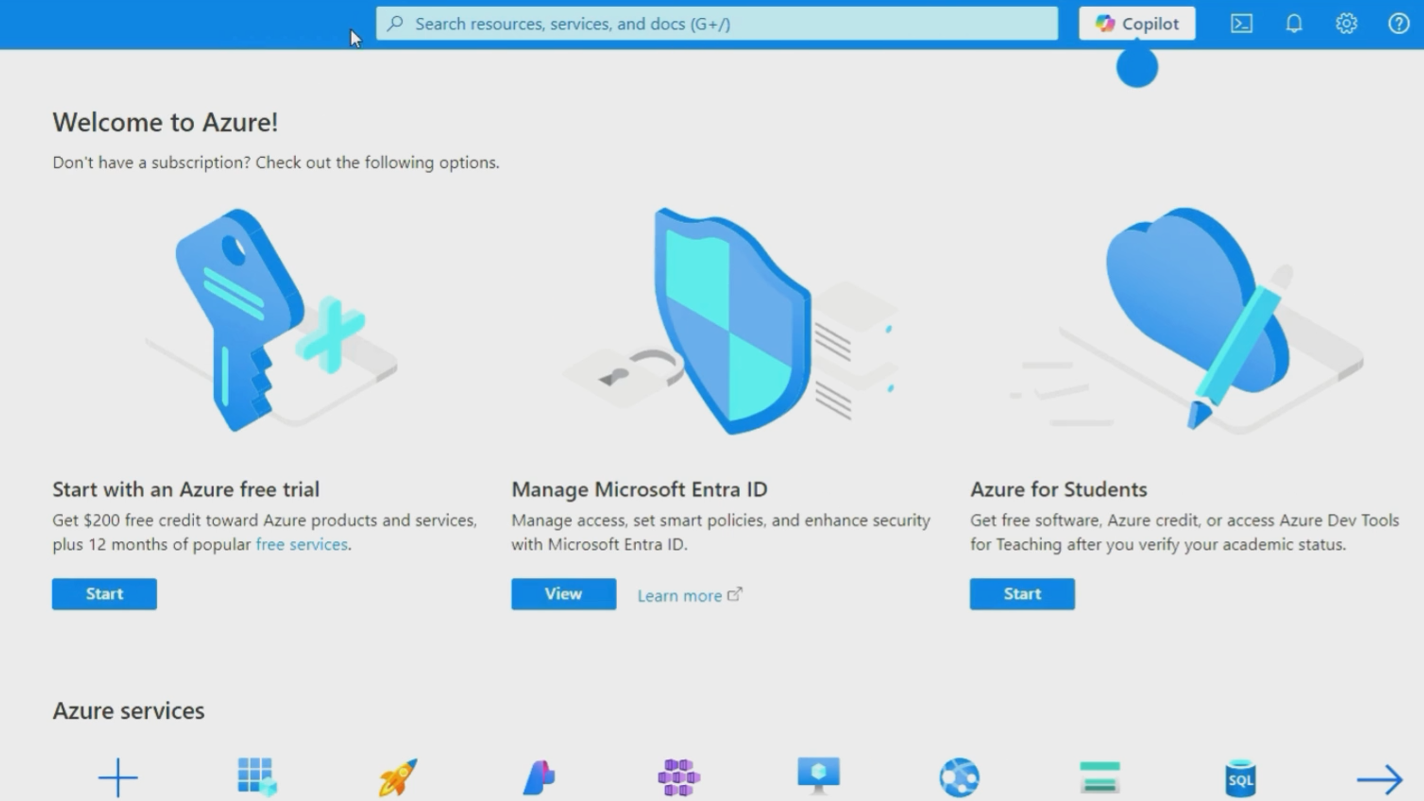
In the search bar at the top, type "app registrations" and select it from the results.
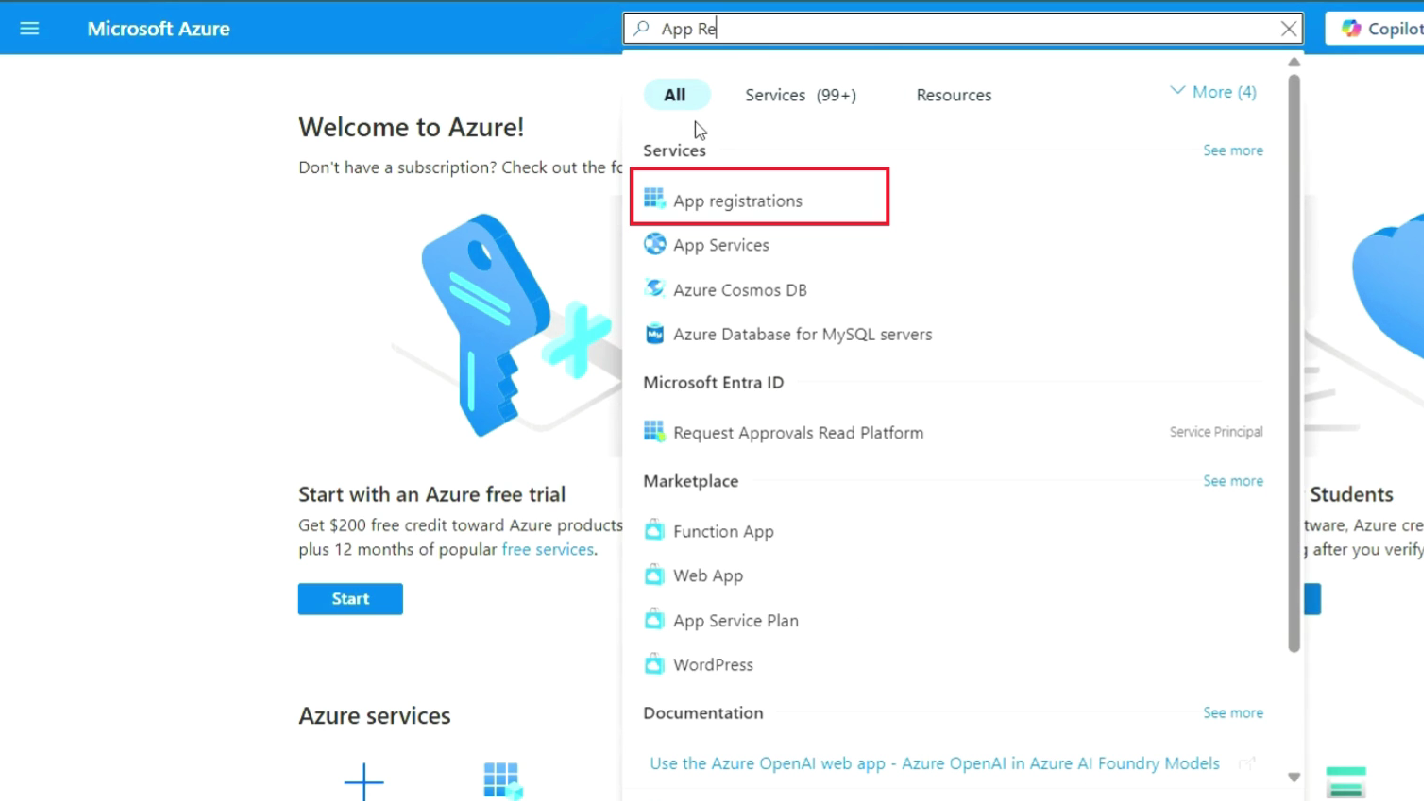
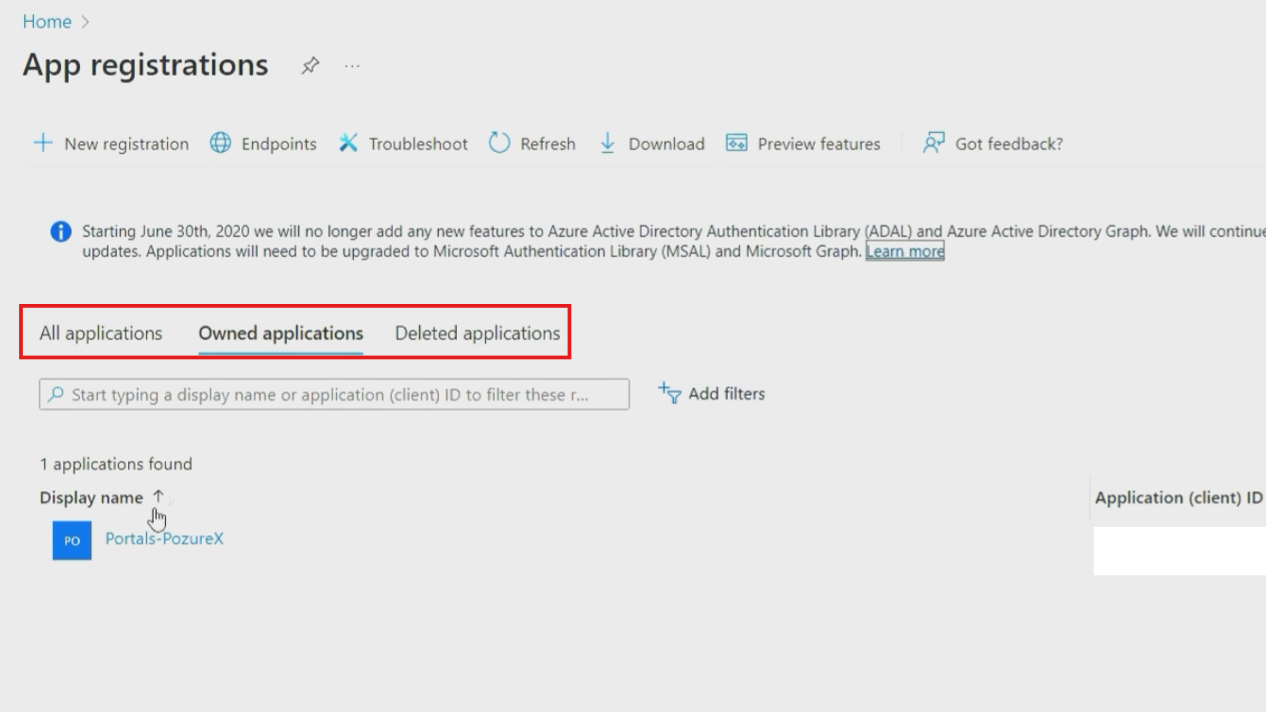
Click on "App registrations" to open the application management interface. You'll see three tabs: "Owned applications", "All applications", and "Deleted applications".
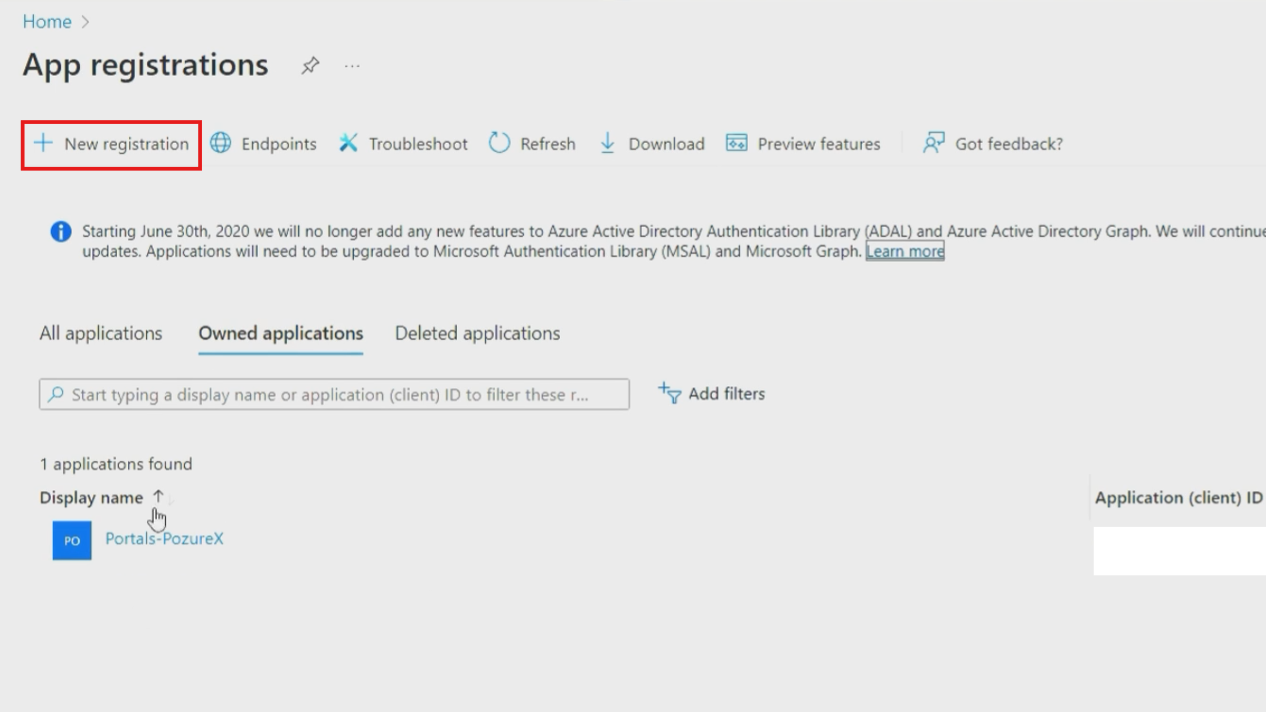
Click "New registration" to start creating your Azure AD app registration.
Step 2: Configure Basic App Registration Settings
When creating your new app registration, you'll need to provide several key pieces of information.
Display name configuration:
- Enter a descriptive name like "Access Token Power Pages" or "Dataverse API Integration"
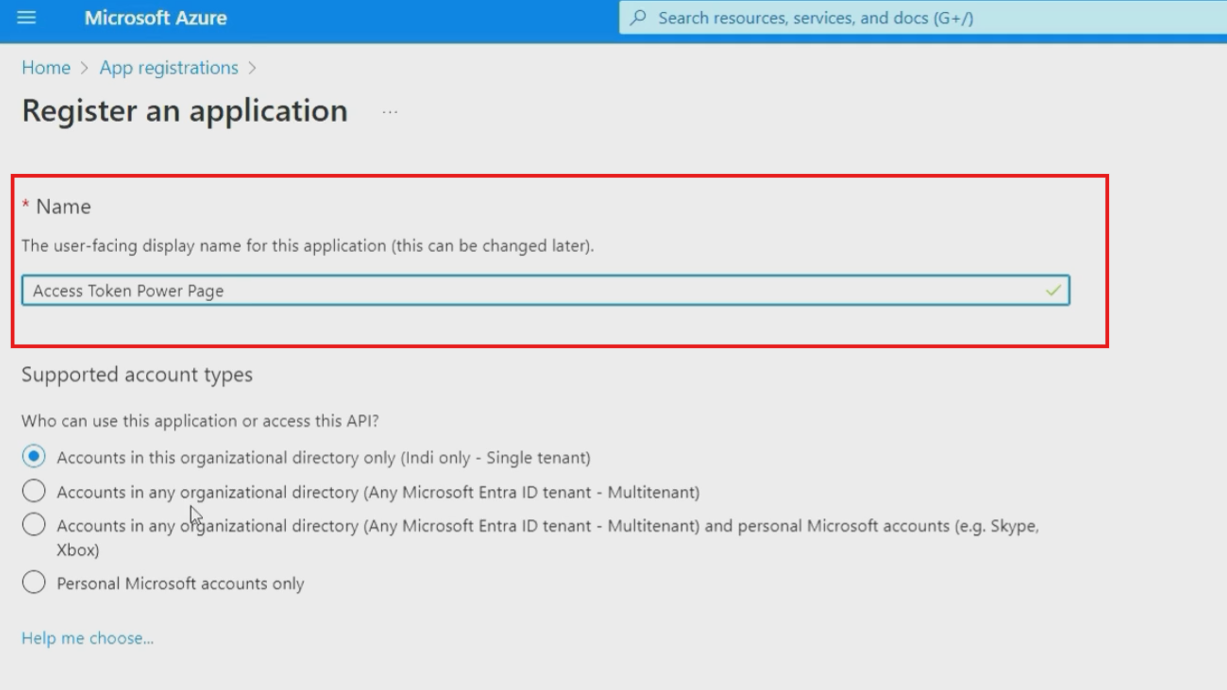
- Choose a name that clearly identifies the application's purpose for easier management
Supported account types:
- Single tenant: Only accounts in your organizational directory
- Multi-tenant: Accounts in any organizational directory
- Personal accounts: Microsoft personal accounts (not recommended for business applications)
- Multi-tenant + personal: Broadest access but requires careful security consideration
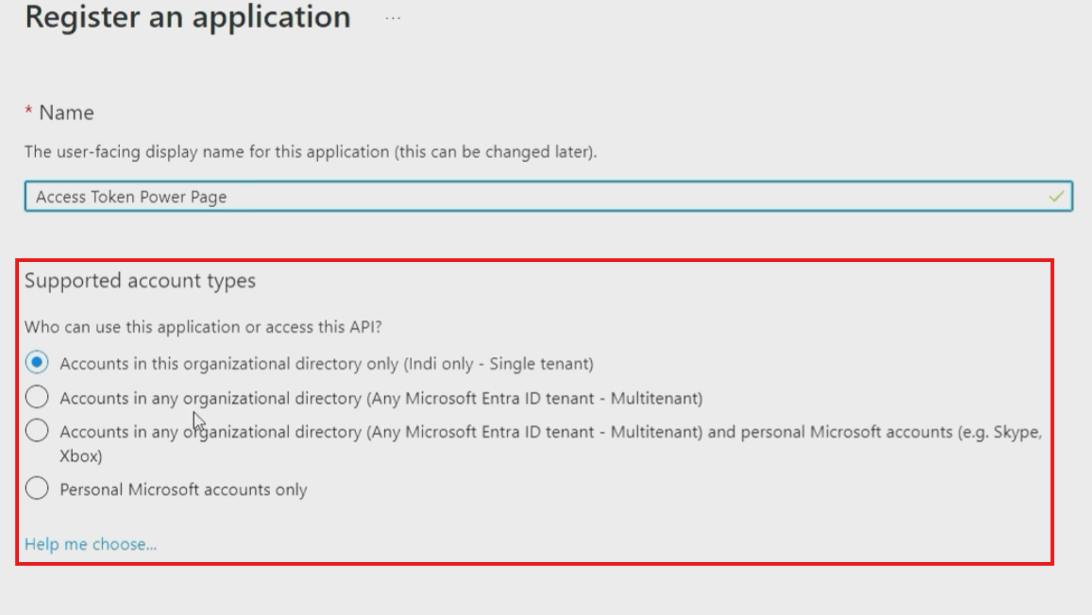
For most Power Platform integrations, select single tenant unless you specifically need broader access. Alternatively, you can choose the "Help me choose" option if you cannot decide.
Redirect URI (optional):
- You can add this later if your application requires web-based authentication
- For API-only access, this can be left blank initially
- Click "Register" to create your app registration.
Step 3: Generate Client Secret for Authentication
After creating the app registration, you'll be redirected to the overview page showing important details like Application (client) ID, Object ID, and Directory (tenant) ID.
To generate a client secret:
- In the left navigation menu, click "Certificates & secrets"
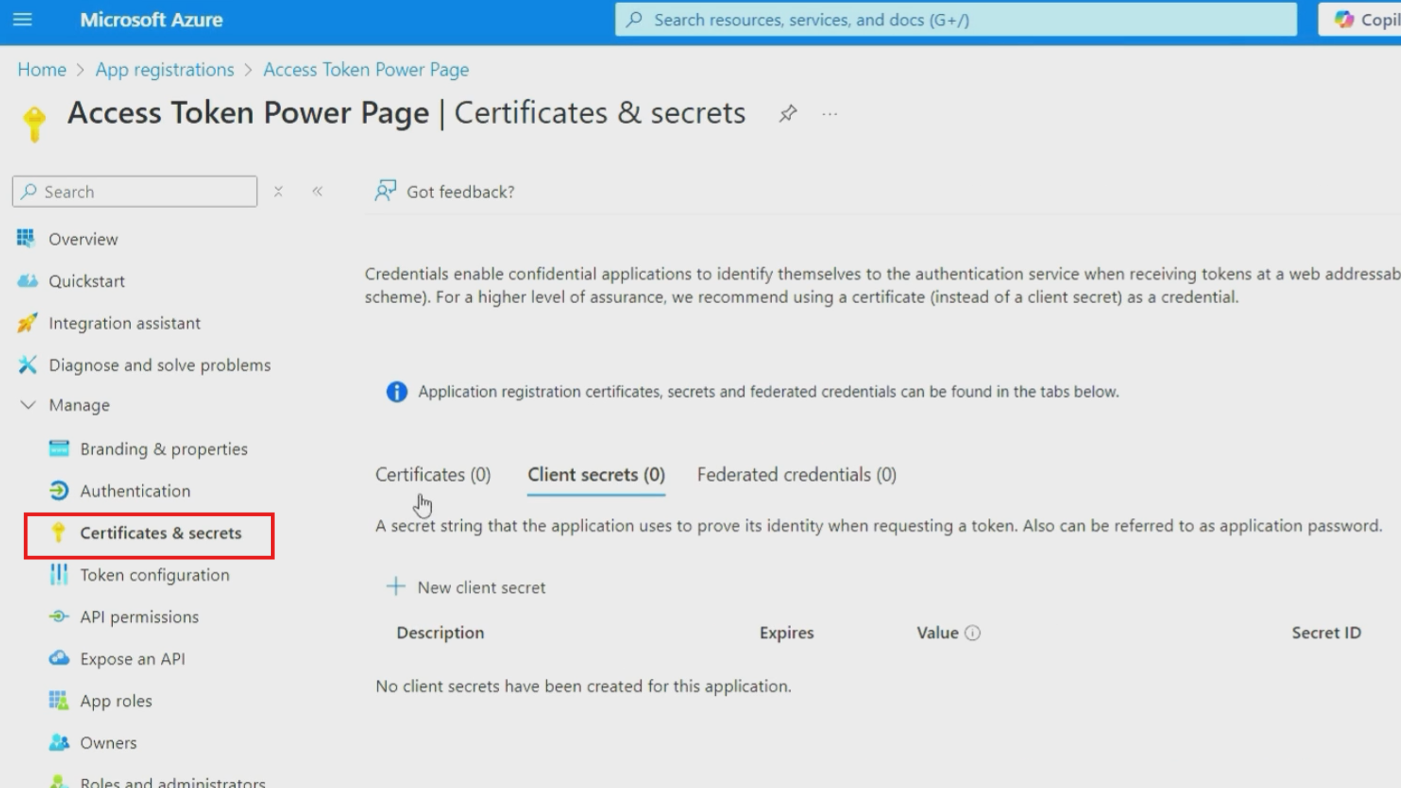
Under the "Client secrets" section, click "New client secret".
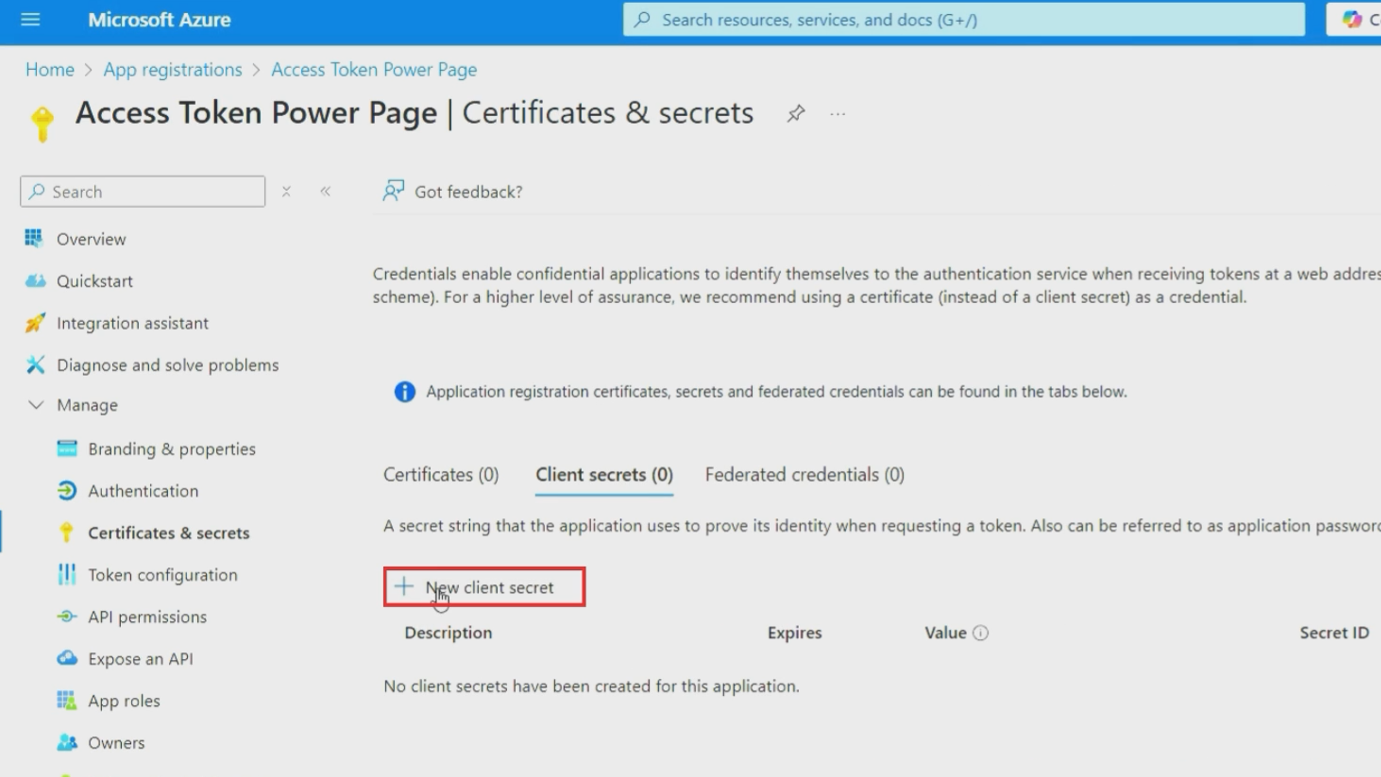
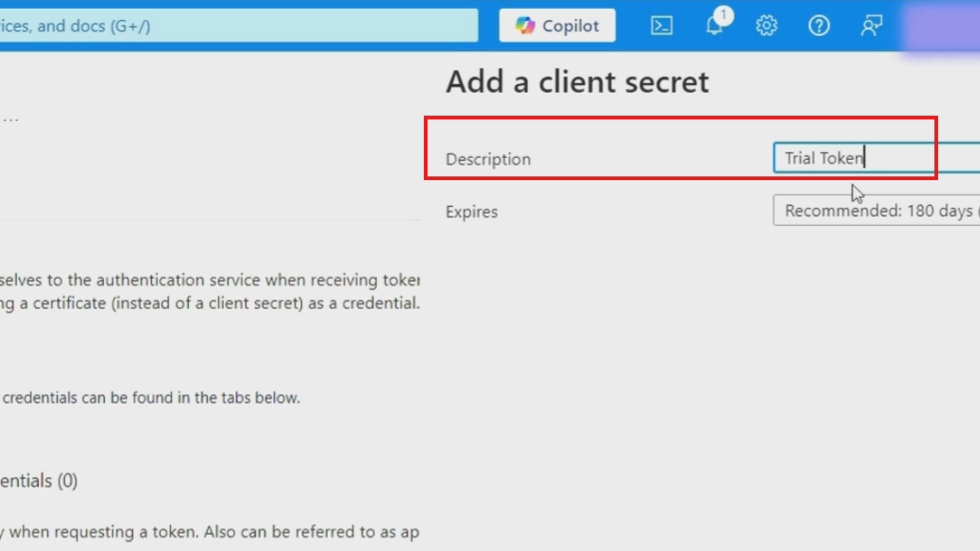
Provide a meaningful description like "Trial Token" or "Production API Access".
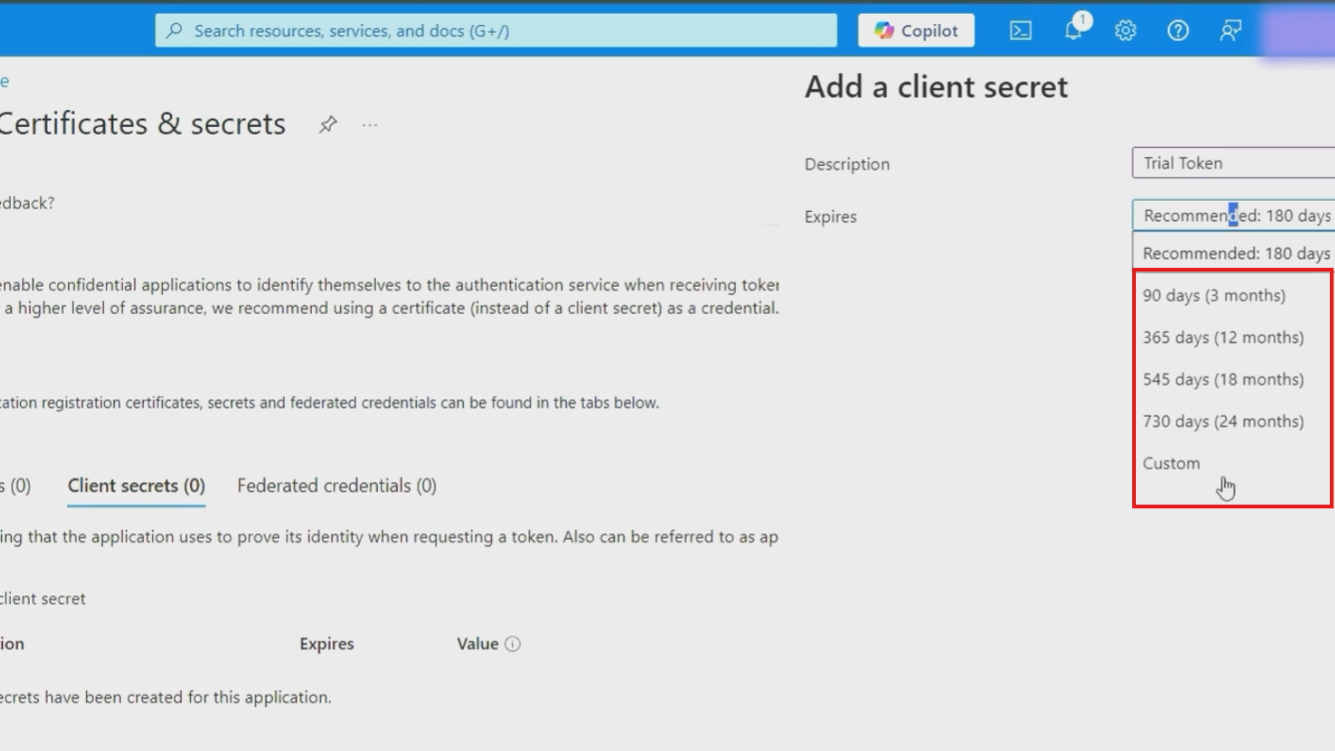
Select the expiration period (90 days, 6 months, 12 months, or custom).
Click "Add" to generate the secret.
Note: Once created, copy the client secret value immediately (not the id). This value is only displayed once and cannot be retrieved later. Store it securely - never commit it to source control or share it in plain text.
Step 4: Configure API Permissions for Dataverse Access
Your app registration needs specific permissions to access Dataverse and perform operations on your behalf.
Adding Dataverse permissions:
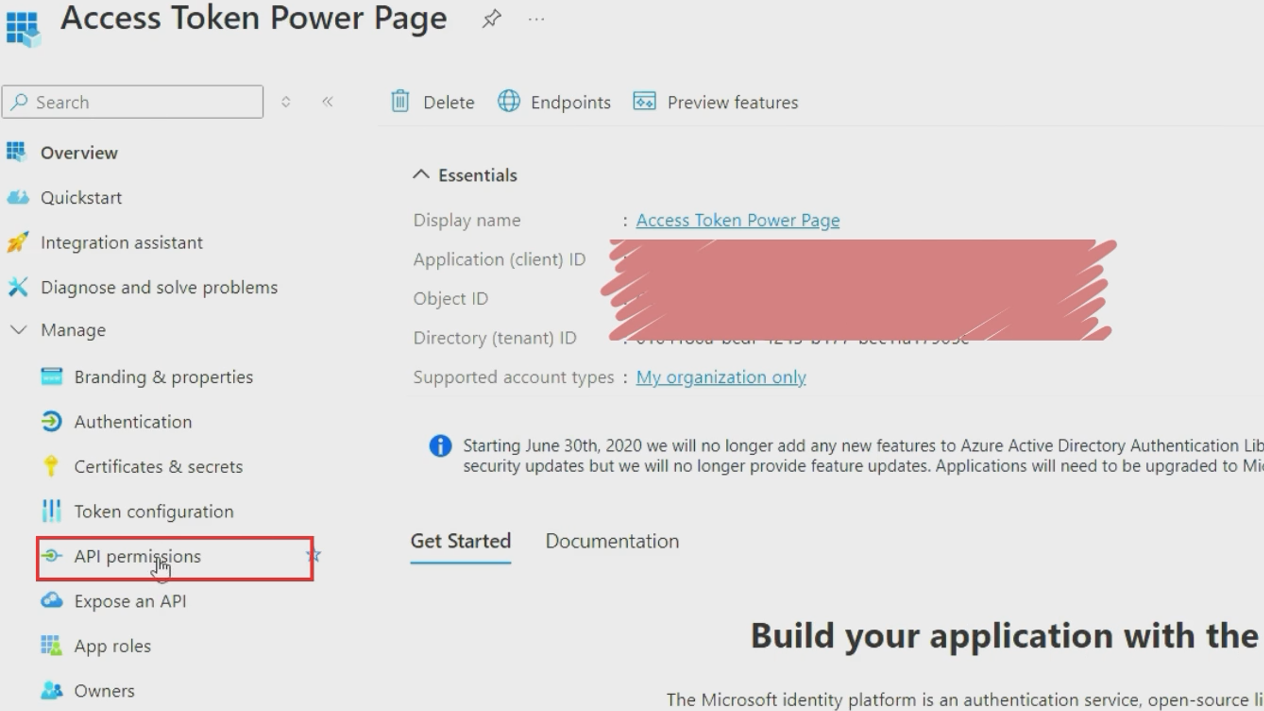
- Navigate to "API permissions" in the left menu
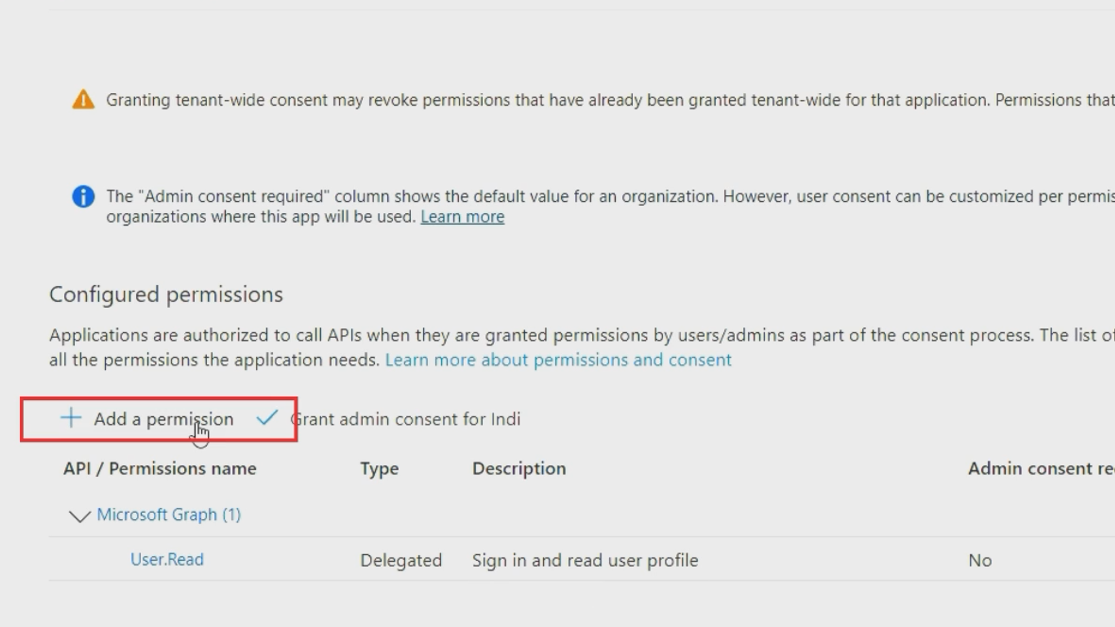
- Click "Add a permission"
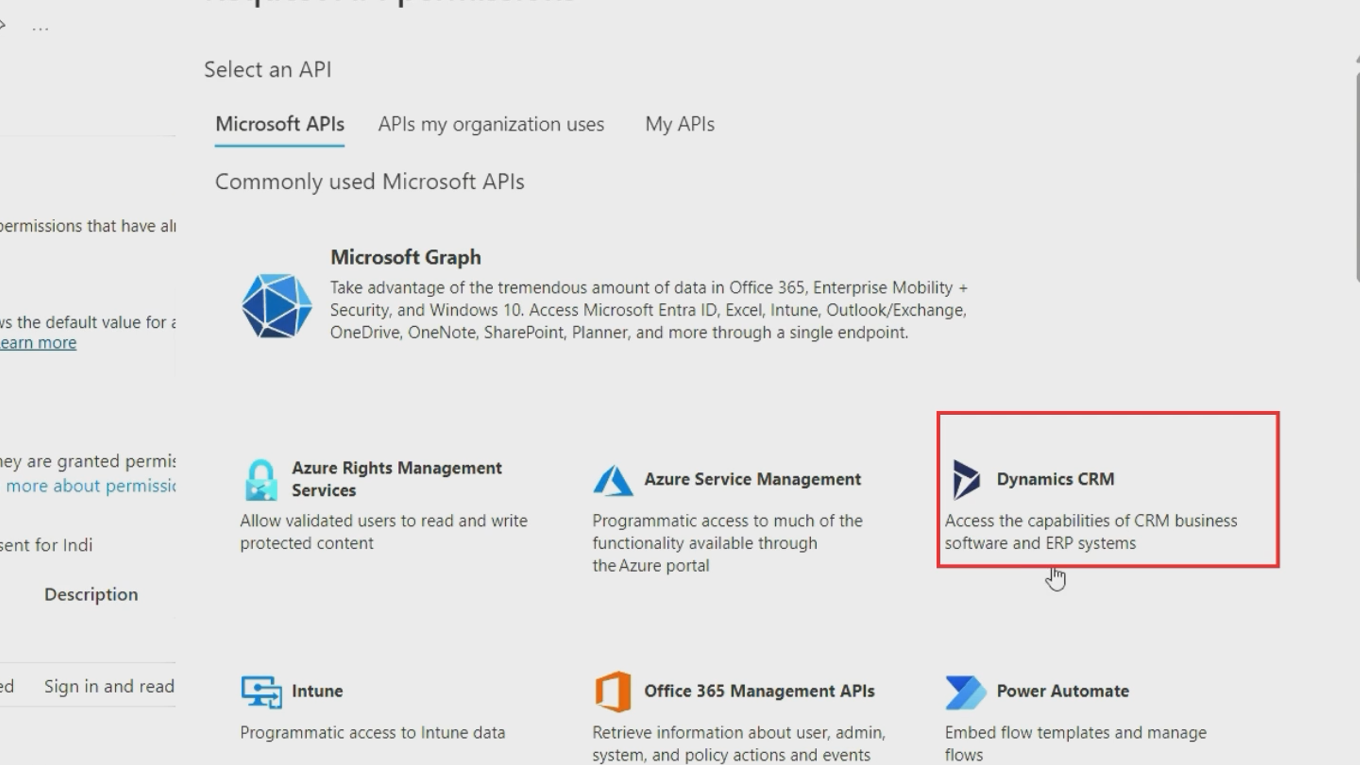
Select the "APIs my organization uses" tab. Search for "Dynamics CRM" or "Common Data Service". Select "Dynamics CRM" from the results.
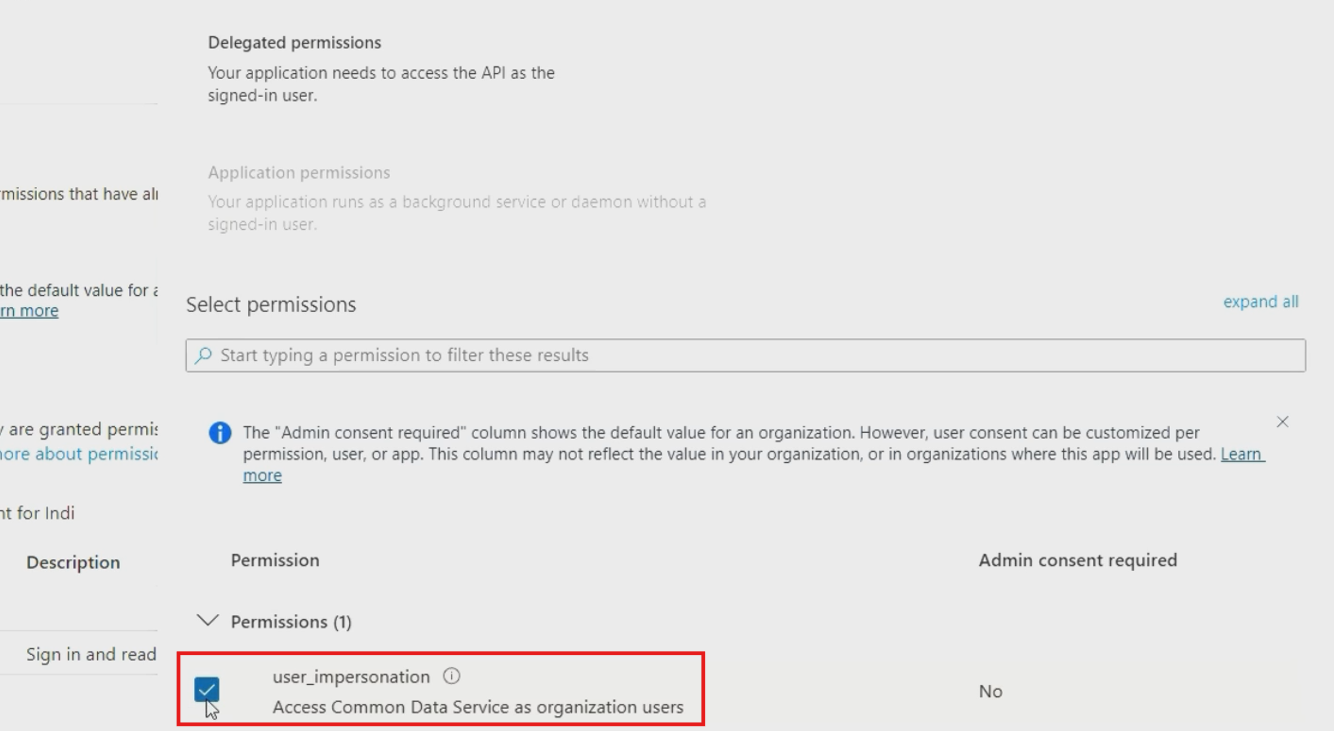
Choose "Delegated permissions". Select the "user_impersonation" permission.
Click "Add permissions" at the bottom. After adding permissions, click "Grant admin consent for [your organization]" to activate these permissions immediately.

Note: This last step is crucial for the app to function properly.
Step 5: Configure Power Platform Application User
Now you need to create an application user in your Power Platform environment to represent your app registration.
Access Power Platform Admin Center:
- Navigate to admin.powerplatform.microsoft.com
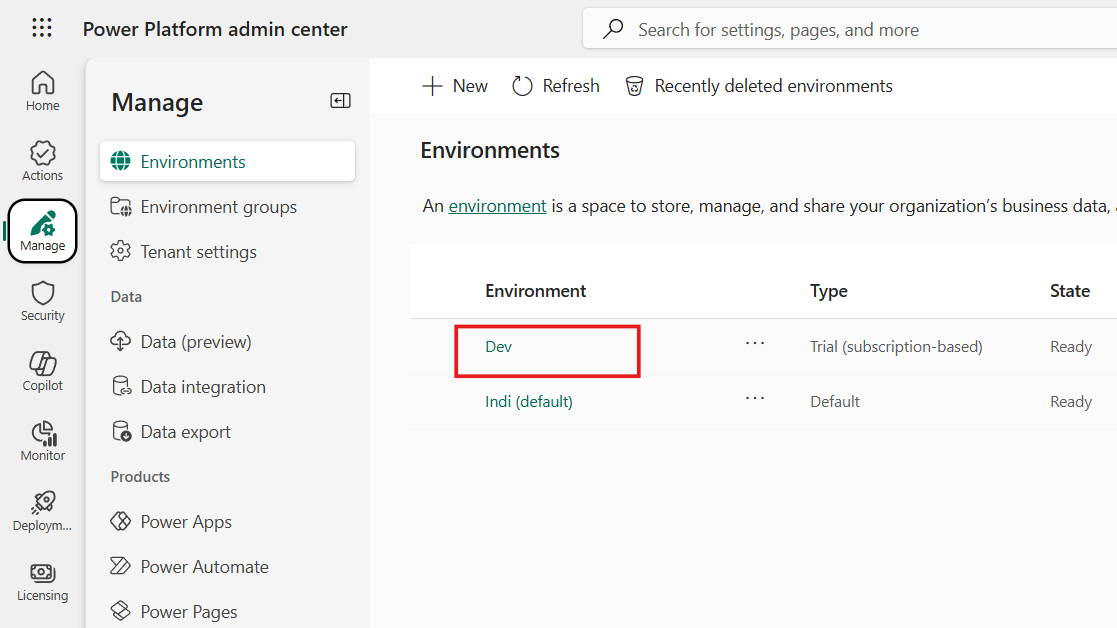
- From the "Manage" tab, select your target environment
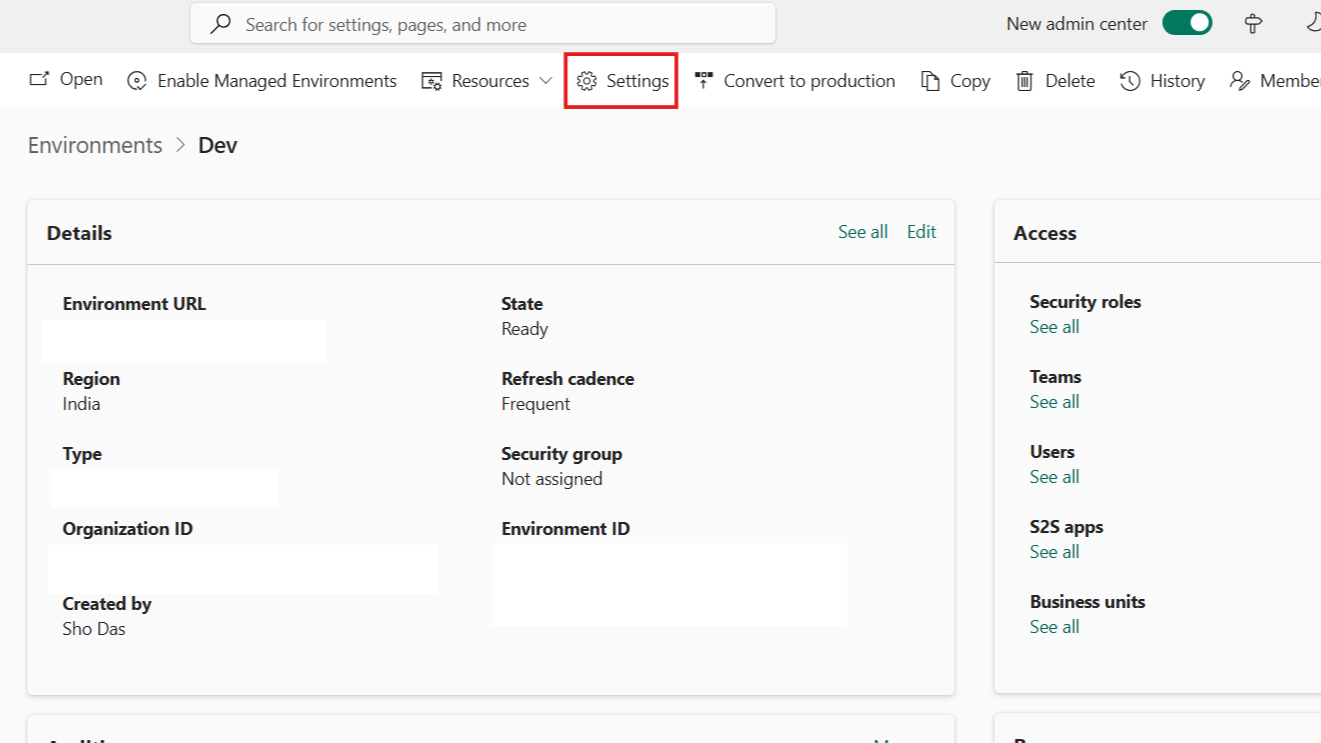
Click "Settings" from the top menu.
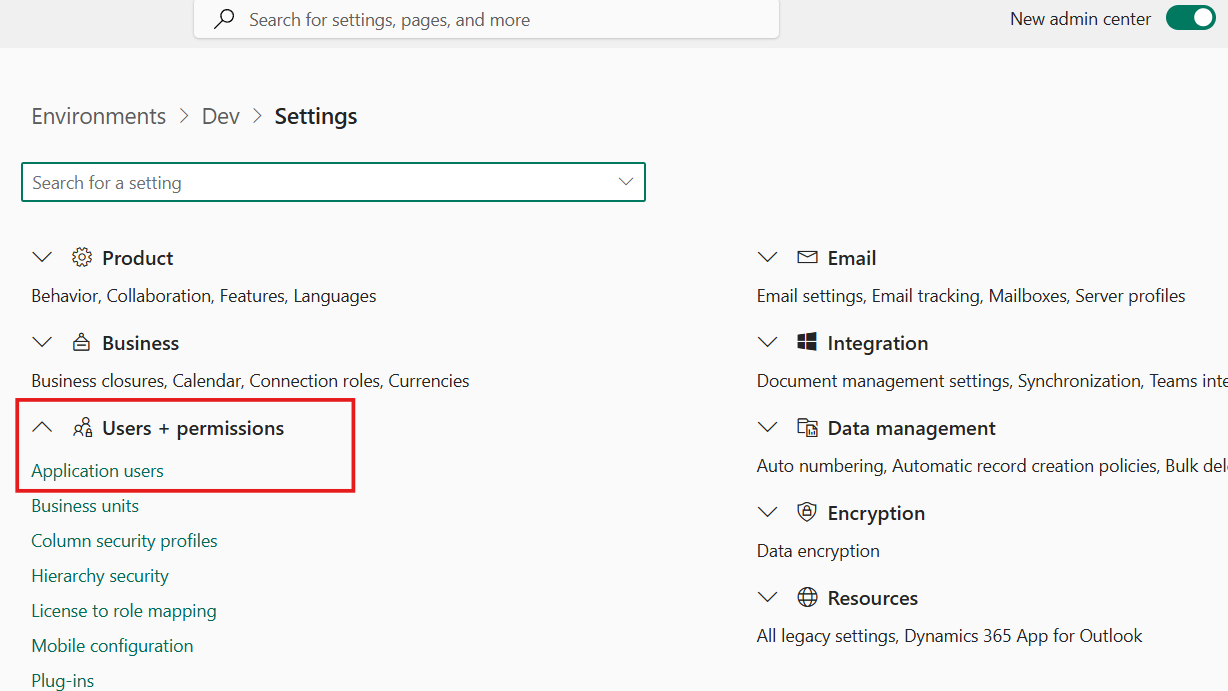
Navigate to "Users + permissions" then "Application users".
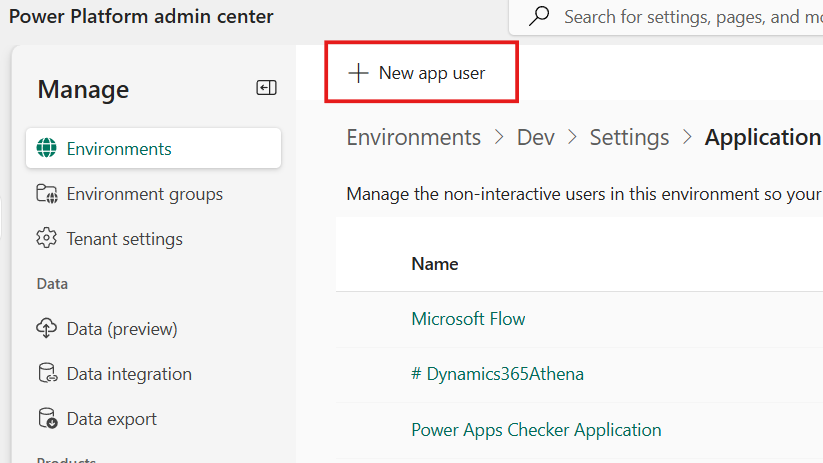
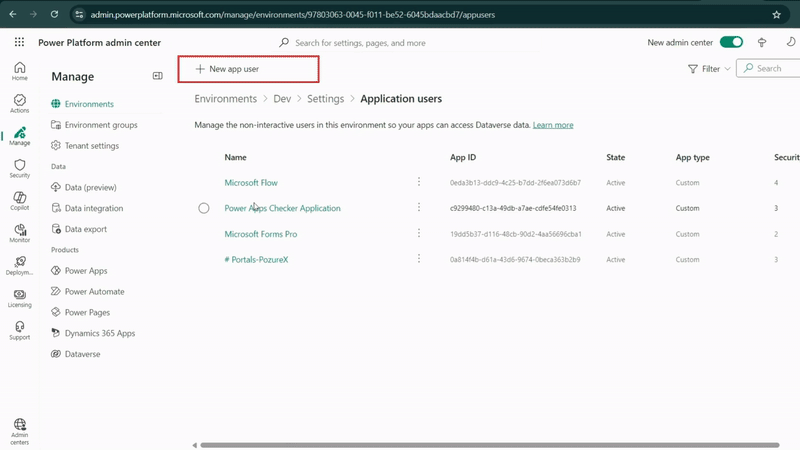
Click "New app user".
Register your Azure app:
- Click "Add an app" and search for your app registration name
- Select the app you created (e.g., "Access Token Power Pages")
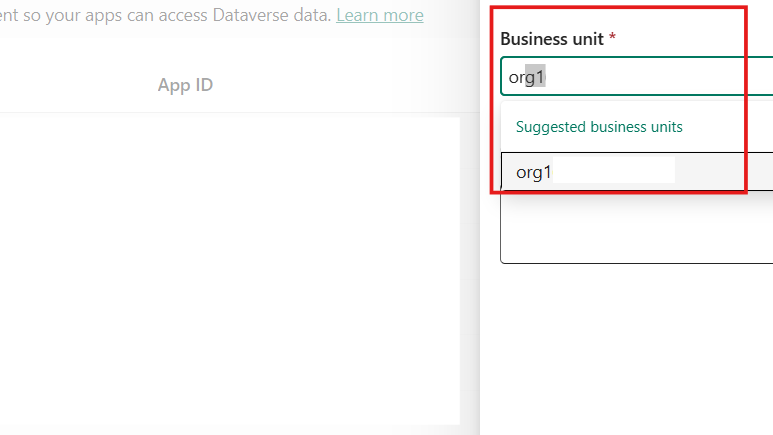
Choose the appropriate business unit (usually your organization).
Assign security roles - for testing, you can use "System Administrator" but create custom roles for production.
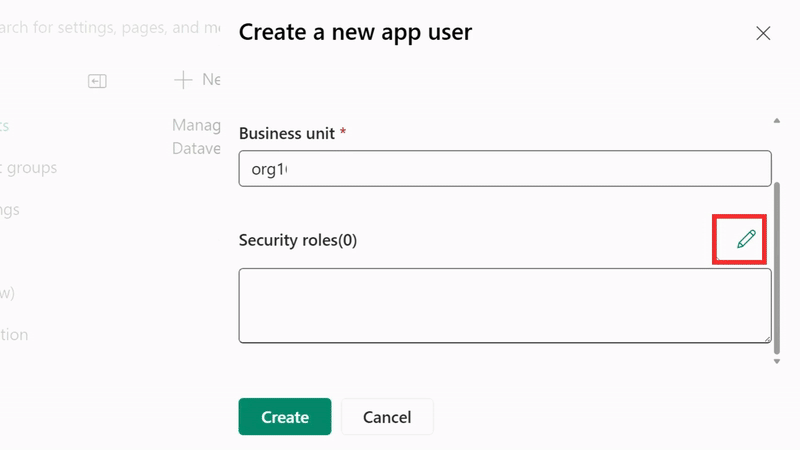
Security Best Practice: Instead of using System Administrator, create a custom security role with only the minimum permissions required for your application's functionality.
Step 6: Test Your Configuration with Access Token
To verify everything is configured correctly, you can test the authentication flow using tools like Postman or custom code.
Required parameters for the token request:
- Grant Type: client_credentials (no change)
- Client ID: Application (client) ID from Azure portal
- Client Secret: The secret value you generated
- Scope: https://[your-environment].crm.dynamics.com/.default
- Token Endpoint: https://login.microsoftonline.com/[tenant-id]/oauth2/v2.0/token
Sample request structure:
GET: https://login.microsoftonline.com/{tenant-id}/oauth2/v2.0/token

Content-Type: application/x-www-form-urlencoded

grant_type=client_credentials &client_id={your-client-id} &client_secret={your-client-secret} & scope=https://{your-environment}.crm.dynamics.com/.default
A successful response (HTTP 200) will return an access token that you can use for subsequent Dataverse Web API calls.
Common Dataverse operations:
- Retrieve records: GET requests to entity endpoints
- Create records: POST requests with JSON payload
- Update records: PATCH requests to specific record endpoints
- Delete records: DELETE requests to record endpoints
Security Best Practices for Azure App Registration
Client secret management:
- Use Azure Key Vault to store client secrets securely
- Implement secret rotation policies (recommend 90-day rotation)
- Never hardcode secrets in application code or configuration files
- Use environment variables or secure configuration providers
Permission management:
- Follow the principle of least privilege - grant only necessary permissions
- Create custom security roles instead of using built-in administrator roles
- Regularly audit and review application permissions
- Monitor application usage through Azure AD logs
Network security:
- Implement IP restrictions where possible
- Use conditional access policies for additional security layers
- Consider certificate-based authentication for highly sensitive applications
Troubleshooting Common Issues
Authentication failures:
- Verify client ID and tenant ID are correct
- Ensure client secret hasn't expired
- Check that admin consent has been granted for required permissions
Permission errors:
- Confirm the application user has appropriate security roles in Power Platform
- Verify API permissions are correctly configured in Azure AD
- Check that the scope parameter matches your environment URL
Token issues:
- Ensure you're using the correct token endpoint for your tenant
- Verify the scope parameter includes the .default suffix
- Check token expiration and implement proper refresh logic
Advanced Configuration Options
Multi-environment setup: When working with multiple Power Platform environments (Development, Testing, Production), you can use the same app registration across environments by configuring appropriate application users in each environment.
Certificate authentication: For enhanced security, consider using certificate-based authentication instead of client secrets. This provides better security and longer validity periods.
Conditional access integration: Implement conditional access policies to add additional security layers based on user location, device compliance, and risk assessment.
Monitoring and Maintenance
Regular maintenance tasks:
- Monitor client secret expiration dates and rotate before expiry
- Review application usage through Azure AD sign-in logs
- Audit permissions and remove unused access
- Update security roles based on changing requirements
Performance monitoring:
- Track API usage patterns and optimize accordingly
- Monitor token refresh rates and implement caching strategies
- Set up alerts for authentication failures or unusual activity
Frequently Asked Questions
What is Azure AD app registration and why do I need it for Power Platform
Azure AD app registration creates a secure identity for your application to authenticate with Microsoft services. Instead of using personal credentials, your app uses its own client ID and secret to access Power Platform APIs securely.
How long does an Azure app registration client secret last
Client secrets can be configured for 90 days, 6 months, 12 months, or custom periods up to 2 years. For security best practices, Microsoft recommends rotating secrets every 90 days and never using secrets longer than 2 years.
Can I use the same app registration for multiple Power Platform environments
Yes, you can use one Azure AD app registration across multiple environments (Dev, Test, Production). You'll need to create separate application users in each Power Platform environment and configure appropriate permissions for each.
What's the difference between delegated permissions and application permissions
Delegated permissions act on behalf of a signed-in user, while application permissions allow the app to access data independently. For Power Platform API access, you typically use delegated permissions with user_impersonation scope.
Why am I getting "insufficient privileges" errors after setting up app registration
This usually means the application user in Power Platform doesn't have the right security roles. Check that your application user has appropriate permissions and that admin consent was granted for the API permissions.
How do I rotate client secrets without breaking my application
Create a new client secret before the old one expires, update your application to use the new secret, test thoroughly, then delete the old secret. This ensures continuous operation during the transition.
Can I use certificates instead of client secrets for authentication
Yes, certificate-based authentication is more secure and recommended for production applications. Upload a certificate to your app registration and use it instead of client secrets for enhanced security.
What happens if I accidentally expose my client secret
Immediately delete the exposed secret from Azure AD, create a new one, and update your application. Monitor your Azure AD logs for any unauthorized access and consider implementing additional security measures.
How do I troubleshoot "invalid_client" errors
Verify your client ID and tenant ID are correct, ensure the client secret hasn't expired, check that you're using the correct token endpoint, and confirm admin consent was granted for required permissions.
Is there a limit to how many app registrations I can create
Azure AD has default limits, but they're quite high for most use cases. You can create thousands of app registrations per tenant, but consider organizing them properly and cleaning up unused registrations.
Got a project in this space?
We build this kind of work for clients across the UK and beyond. Tell us what you’re planning and we’ll come back within one working day.
Send a brief